Skip to content
View in the app

A better way to browse. Learn more.

Loyverse Town

A full-screen app on your home screen with push notifications, badges and more.

To install this app on iOS and iPadOS
  1. Tap the Share icon in Safari
  2. Scroll the menu and tap Add to Home Screen.
  3. Tap Add in the top-right corner.
To install this app on Android
  1. Tap the 3-dot menu (⋮) in the top-right corner of the browser.
  2. Tap Add to Home screen or Install app.
  3. Confirm by tapping Install.

Loyverse KDS - Kitchen Display System

(3 reviews)

8 Screenshots


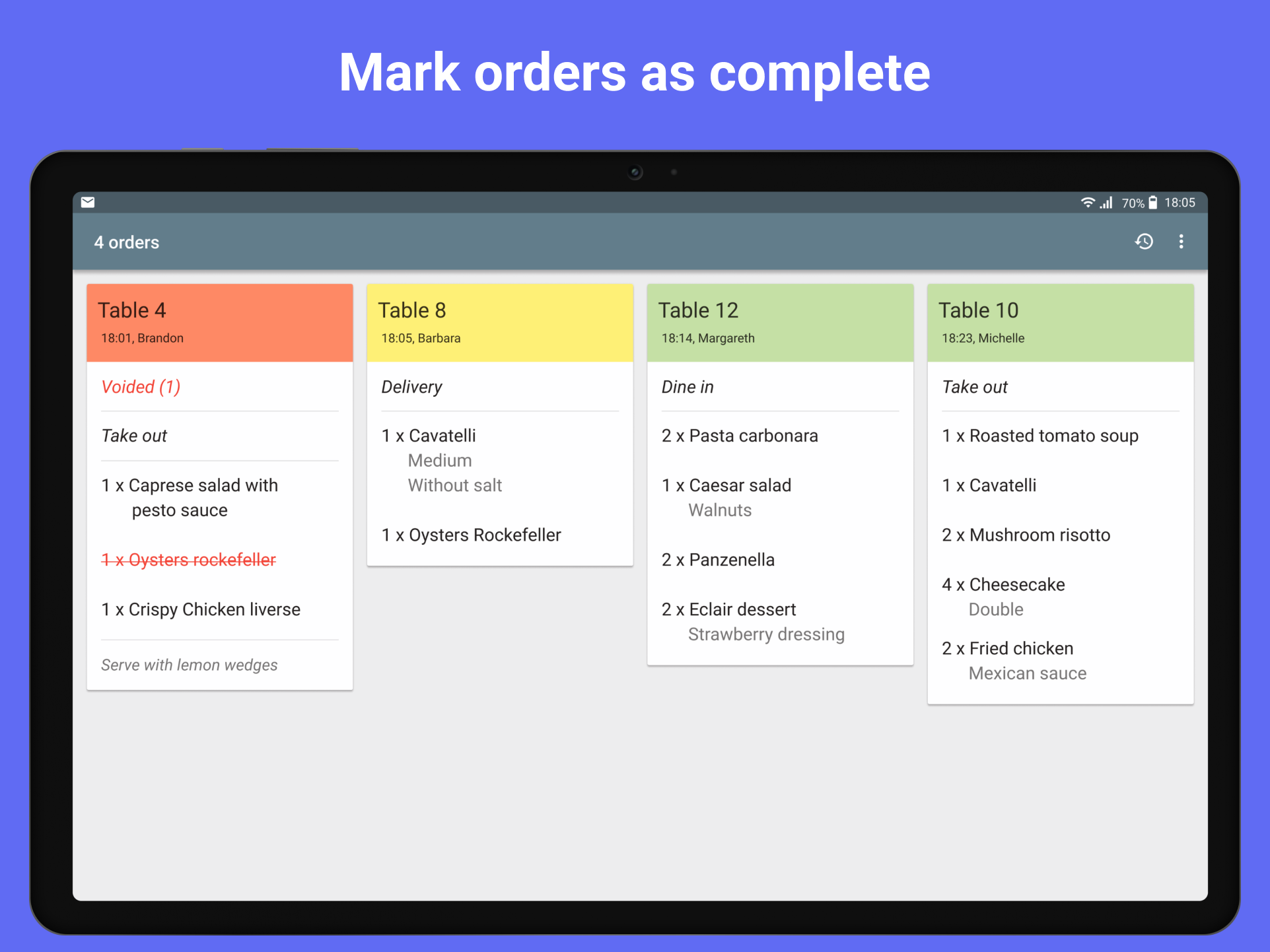
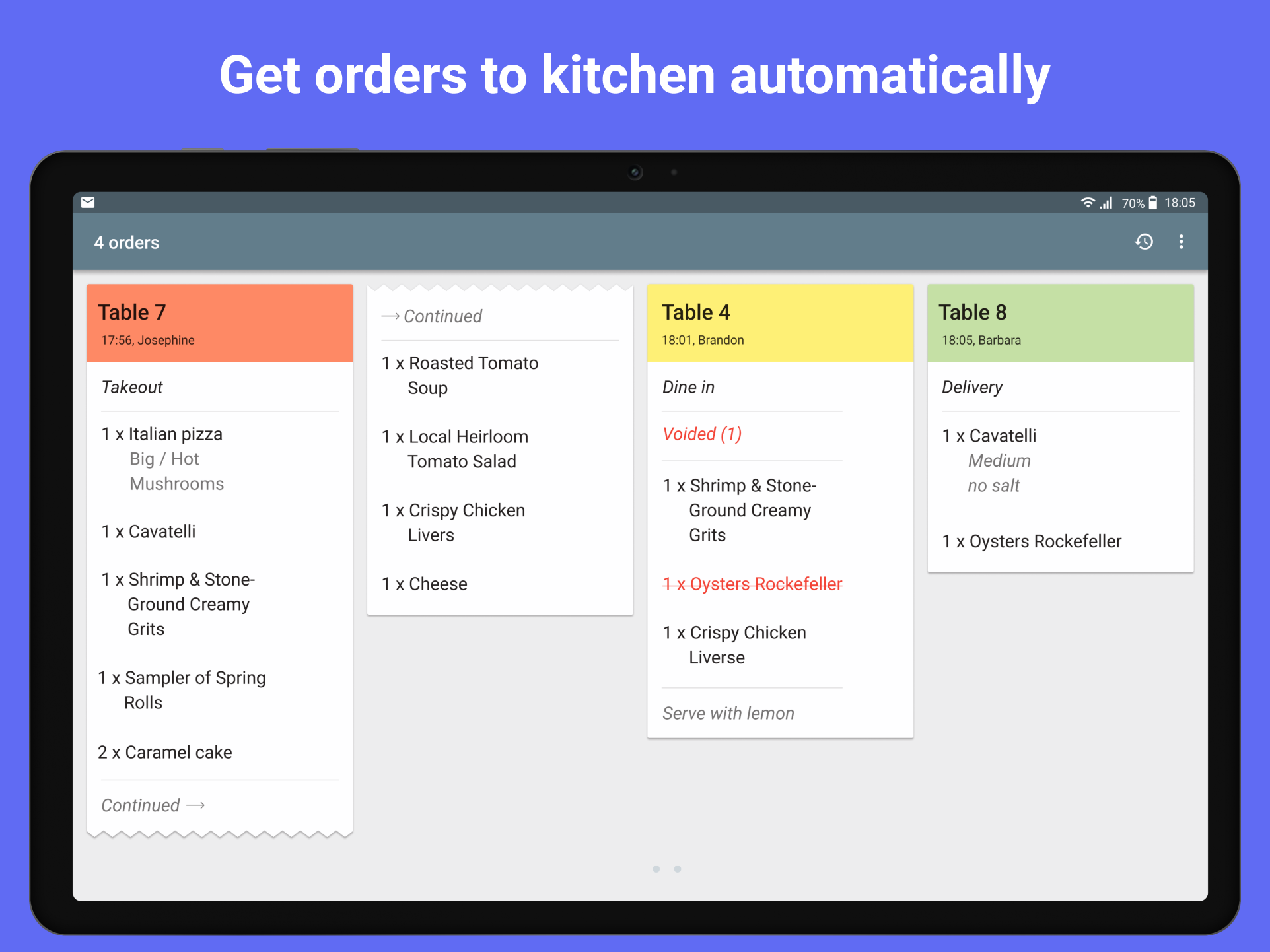
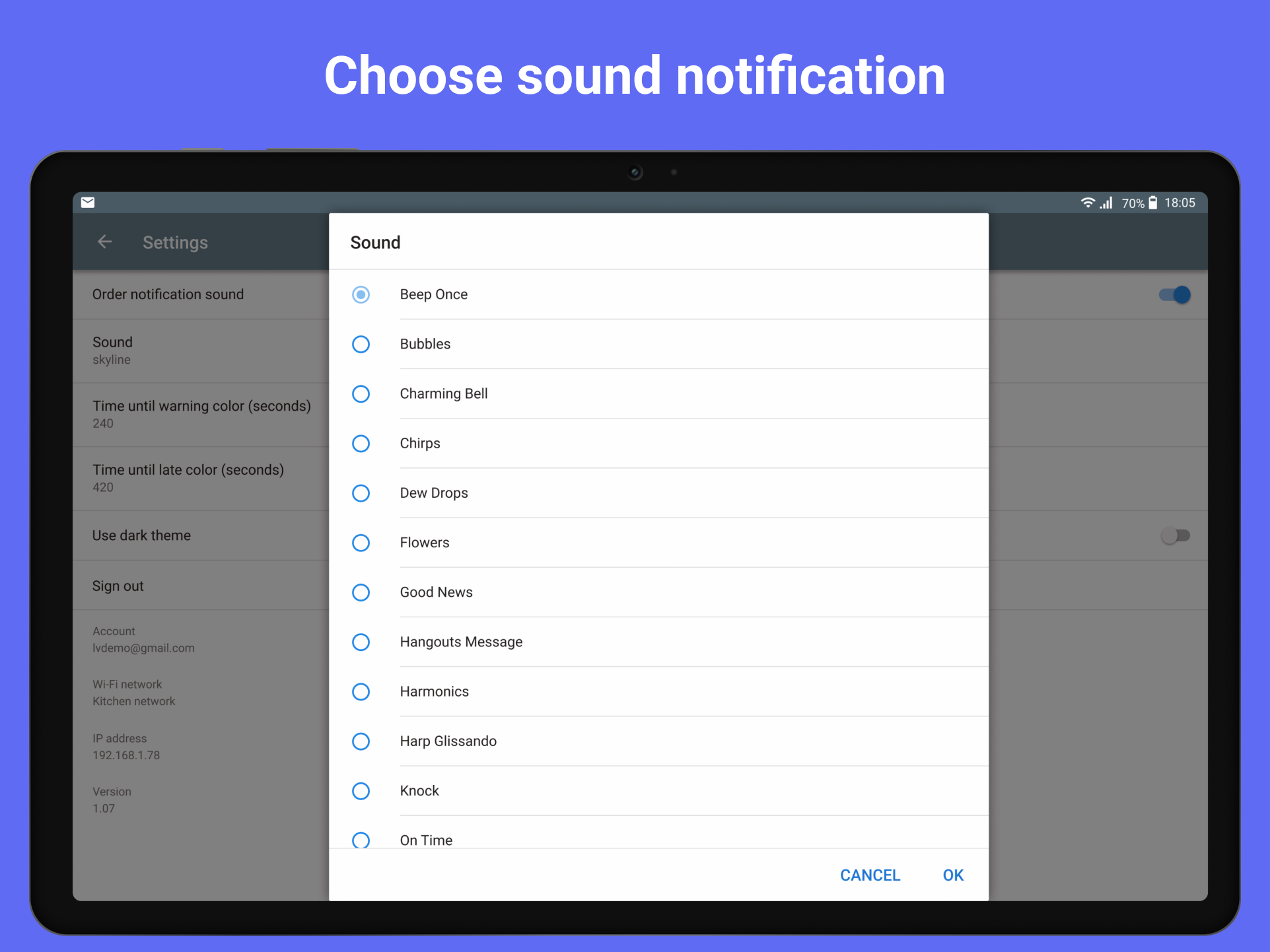
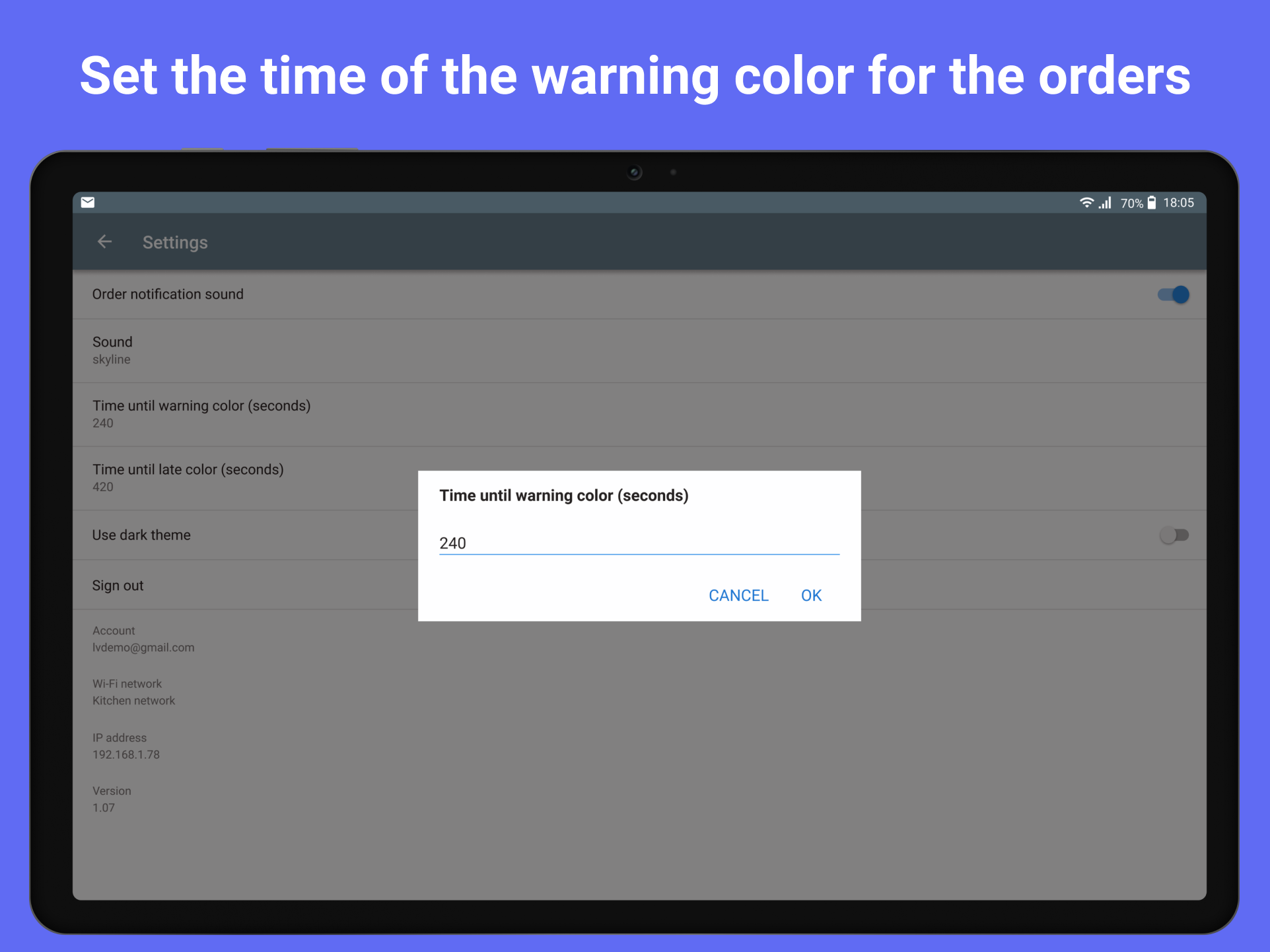
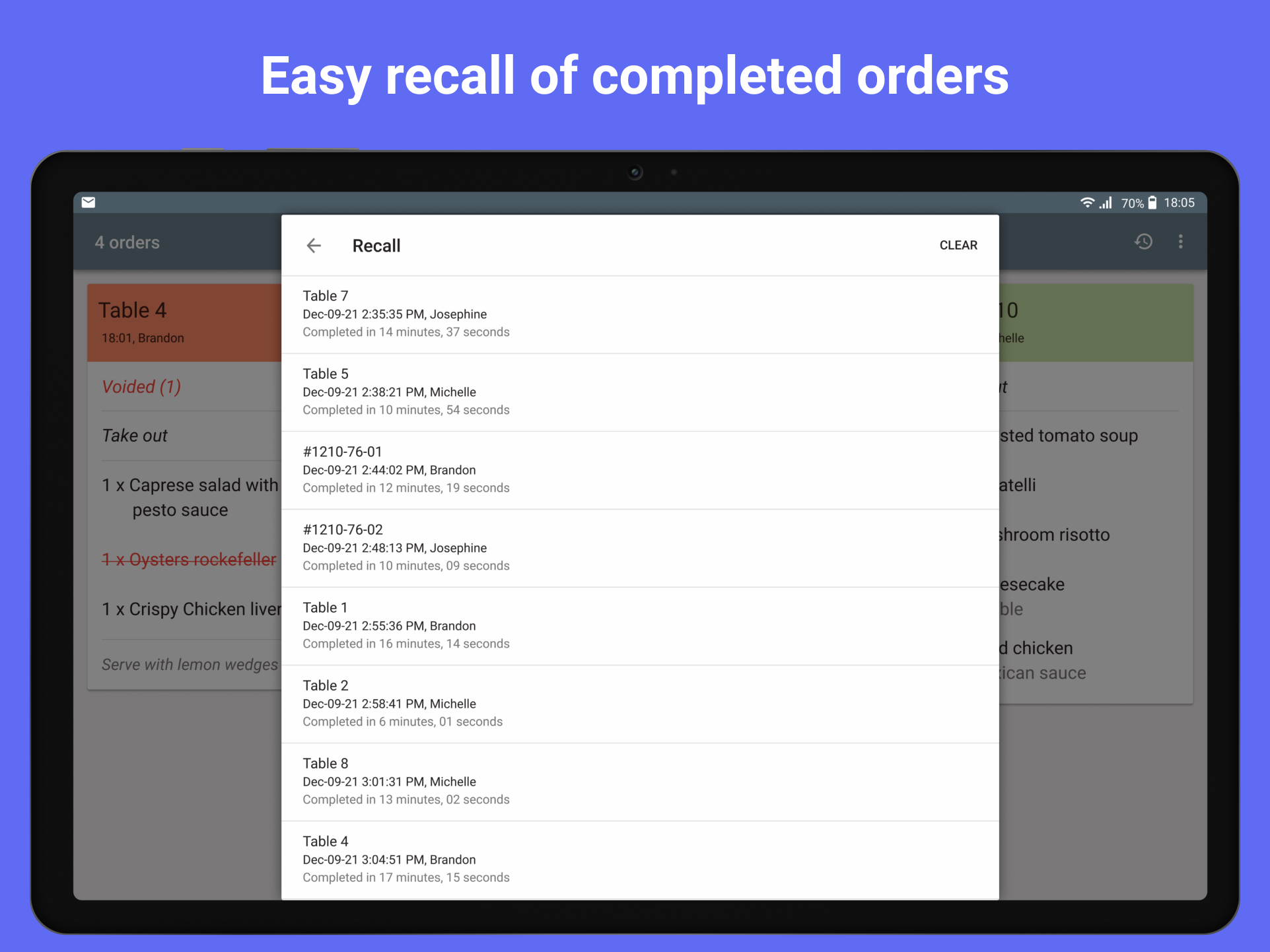
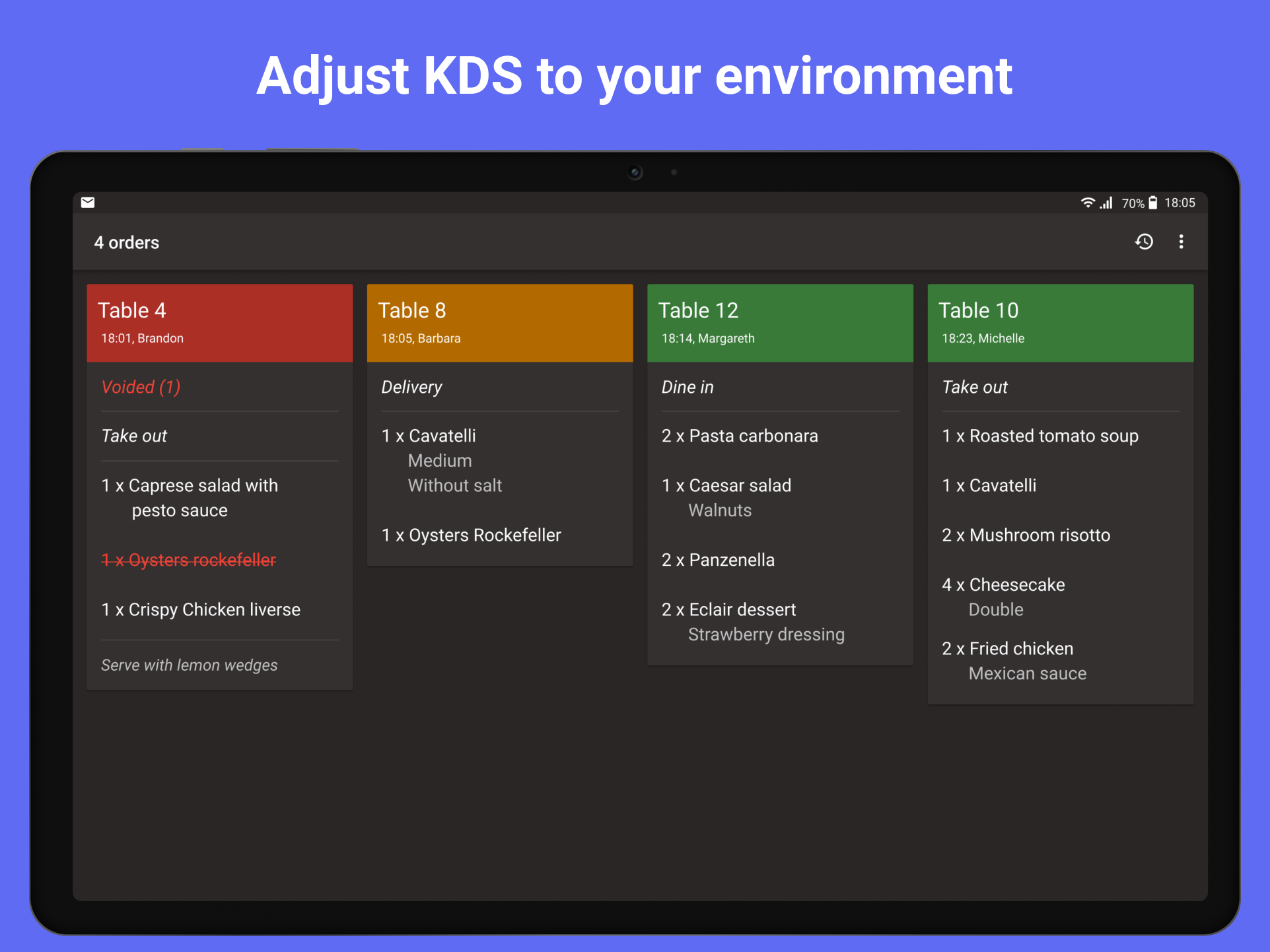
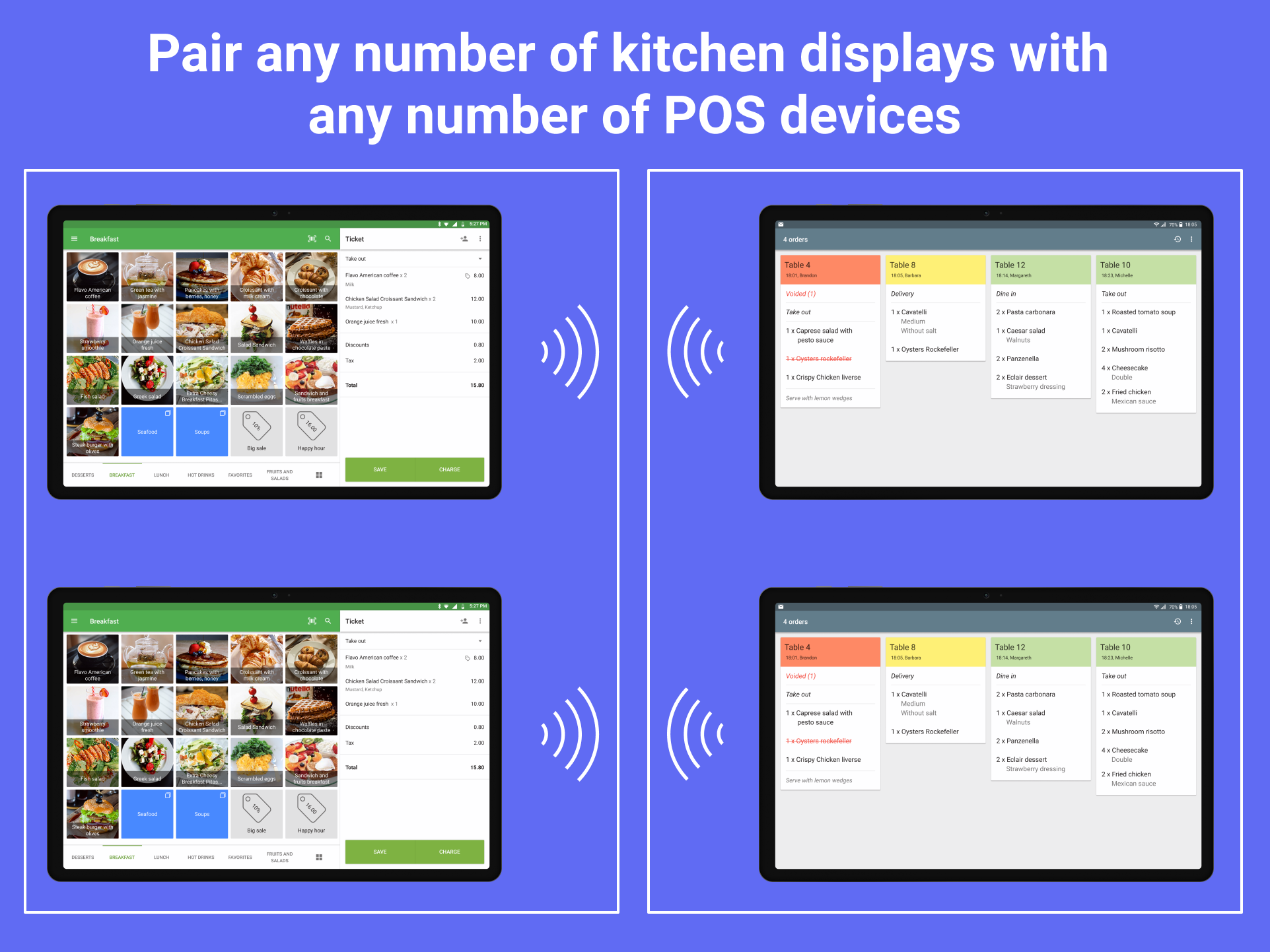
Use Loyverse KDS (Kitchen Display System) in your cafe or restaurant to inform cooking staff what to prepare from an order. Improve ticket times and accuracy with Loyverse kitchen display app. Loyverse KDS communicates directly with Loyverse POS and displays all necessary order information: items, modifiers and notes.

What's New in Version 03/03/26 09:46 AM

Released

Version 1.9.0

- Bug fixes and performance improvements

User Feedback

Please sign in to comment

You will be able to leave a comment after signing in

Sign In Now
tonycr Visitor

tonycr

   2 of 2 members found this review helpful 2 / 2 members

Hello, i have the same issue of grouping up several order to be shown per item instead of order, as a temporary alternative would it be posible to Change the layout of 4 orders at the time to perhaps 8 orders on screen at the time, at least that way the kitchen can overview múltiple orders at once during rush hours?

Screenshot_20250915-194033.png

Gerrit Visitor

Gerrit

   4 of 4 members found this review helpful 4 / 4 members

Analysis of time to close tickets or a method to export tickets data would help to improve our nr 1 measure... delivery time!

Samanta Enthusiast

Samanta

   1 of 1 member found this review helpful 1 / 1 member

Отличная программа

Использую в кафе

Files

Account

Navigation

Search

Search

Configure browser push notifications

Chrome (Android)
  1. Tap the lock icon next to the address bar.
  2. Tap Permissions → Notifications.
  3. Adjust your preference.
Chrome (Desktop)
  1. Click the padlock icon in the address bar.
  2. Select Site settings.
  3. Find Notifications and adjust your preference.