
Skip to content
View in the app

A better way to browse. Learn more.

Loyverse Town

A full-screen app on your home screen with push notifications, badges and more.

To install this app on iOS and iPadOS
  1. Tap the Share icon in Safari
  2. Scroll the menu and tap Add to Home Screen.
  3. Tap Add in the top-right corner.
To install this app on Android
  1. Tap the 3-dot menu (⋮) in the top-right corner of the browser.
  2. Tap Add to Home screen or Install app.
  3. Confirm by tapping Install.

New Feature: Purchase History of a Registered Customer in the POS

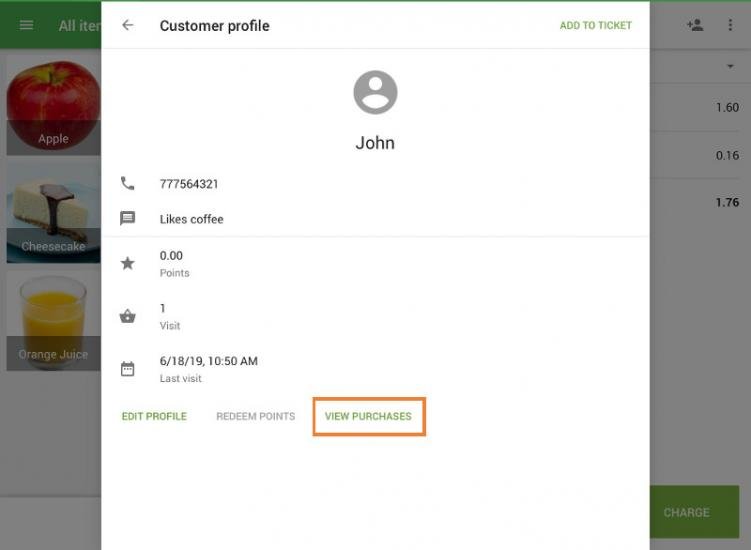
Now,  you can access the list of receipts of registered customers on the POS. This is useful when you want to find a receipt from a specific customer or check the previous purchases of the customer.

To see the purchase history of the customer when making sales, just tap the button “view purchases” on the registered customer profile.
customer-history-pos-01.jpg.4a484ae025639129672db503d89a2ea9.jpg

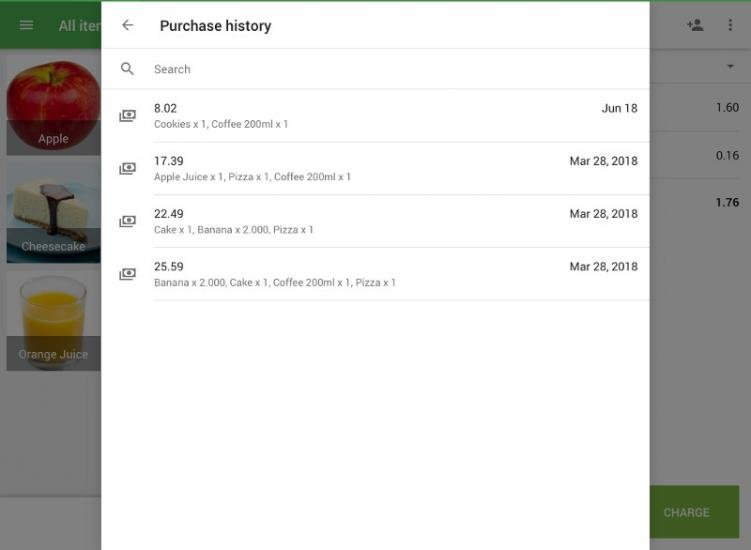
You will see the list of the customer’s past receipts issued from your store. Select to see details.
customer-history-pos-02.jpg.c62fa59577029fde3f22f5b64b698b84.jpg

This feature is currently available on iOS, and will be available on Android soon.


Click here for more details on this feature: https://help.loyverse.com/help/purchase-history-registered

5 Comments

Recommended Comments

rifrachman Visitor

rifrachman

Members

this is one great feature! looking forward for availability in android os

Roddy Participant

Roddy

Members

Is this available on android yet? It's been almost a year and I still can't see the purchase history.

Andy Visitor

Andy

Admin

Purchase history is not available on Android devices yet.

ibs Visitor

ibs

Members

hi.. cant wait this feature available on android ...  hi loyverse please hear it 

Roddy Participant

Roddy

Members

It's now been 2 years! It's not going to happen is it?

Account

Navigation

Search

Search

Configure browser push notifications

Chrome (Android)
  1. Tap the lock icon next to the address bar.
  2. Tap Permissions → Notifications.
  3. Adjust your preference.
Chrome (Desktop)
  1. Click the padlock icon in the address bar.
  2. Select Site settings.
  3. Find Notifications and adjust your preference.