
Skip to content
View in the app

A better way to browse. Learn more.

Loyverse Town

A full-screen app on your home screen with push notifications, badges and more.

To install this app on iOS and iPadOS
  1. Tap the Share icon in Safari
  2. Scroll the menu and tap Add to Home Screen.
  3. Tap Add in the top-right corner.
To install this app on Android
  1. Tap the 3-dot menu (⋮) in the top-right corner of the browser.
  2. Tap Add to Home screen or Install app.
  3. Confirm by tapping Install.

Favorites on the Sale Screen of Smartphones

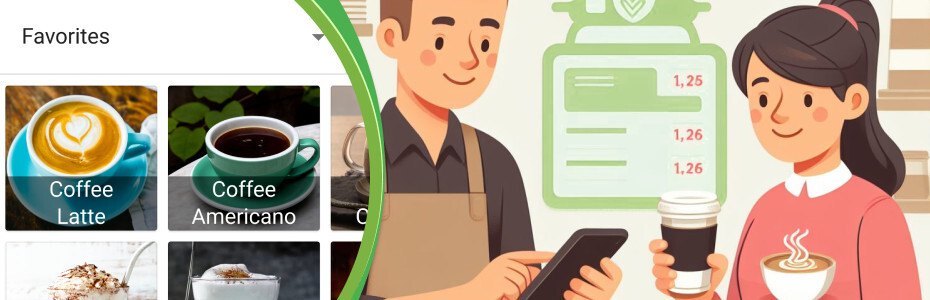
Starting with version 2.73, Loyverse POS for iOS, working on iPhones, and 2.40 for Android Smartphones, has a new functionality called Favorites. 

Favorites allow cashiers to have quick access to the most used items to add them to the ticket during selling.

favorites-05.png.216ae229f3aef654dc4d62ae0a5aa0f6.png

To access the feature, select  ‘Favorites’ from the ‘All items’ drop-down menu. 

favorites-01.png.8f28159ba4797a592bd0d7b942179b73.png


For more details about Favorites, see the help article: How to Use Favorites on the Sale Screen of Smartphones.

Edited by Andy
Favorites working on Android since version 2.40

0 Comments

Recommended Comments

There are no comments to display.

Account

Navigation

Search

Search

Configure browser push notifications

Chrome (Android)
  1. Tap the lock icon next to the address bar.
  2. Tap Permissions → Notifications.
  3. Adjust your preference.
Chrome (Desktop)
  1. Click the padlock icon in the address bar.
  2. Select Site settings.
  3. Find Notifications and adjust your preference.